
Key facts
- Brand
- Microsoft
- Model
- Excel 2016
- Category
- office software
- Documents
- 7
- Languages
- ES · FR · KO · EN
- Last added
- 2023-11-17
Start here
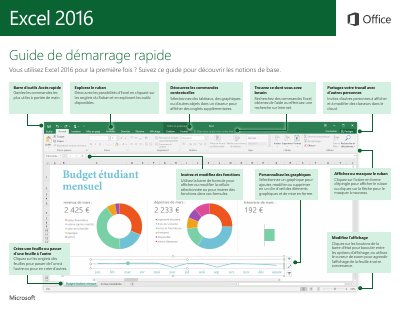
Microsoft Excel 2016 Quick Start Guide
This French quick start guide introduces the main parts of the Microsoft Excel 2016 window and shows where to find everyday commands. It explains the ribbon and its contextual tabs, the Quick Access Toolbar, the formula bar, sheet tabs, the status bar view buttons and zoom slider, and how to pin or hide the ribbon.
The guide then covers practical tasks: opening recent and pinned files, signing in with File > Account to reach files through Office, OneDrive, OneDrive Entreprise and SharePoint, starting from a template, inserting functions from the Formulas tab, formatting a cell range as an Excel table, and sharing a workbook with the Share button. It ends with links to further quick start guides, Office 2016 training material, what's new information and a feedback option. This manual is written in French.
All Microsoft Excel 2016 documents by type
Day-to-day operation, settings and troubleshooting. Start here if the product is already set up.
The shortest path to a working setup, usually only a few pages.
Questions answered in these manuals
How do I create a line break within a single cell in Excel 2016?
To insert a line break instead of validating the cell and moving to the cell below, you must press ALT+INTRO.
What is the requirement for writing a formula in Excel?
A formula must always begin with the equals sign (=).
How do you create a PivotTable?
Select the data range, click Insert on the ribbon, and click the PivotTable button.
What does the #REF! error mean?
The formula references a cell that no longer exists.
How do I insert a function in Excel 2016?
On the Formulas tab, click Insert Function to open the Insert Function dialog box, where you can search for and insert functions, check syntax and get help on the selected function.
How do I share a workbook with other people?
Click the Share button in the upper-right corner of the application window, then create a sharing link or send invitations in the Share pane that opens.