
Quick guide to install and configure TRENDnet TVP-SP3 VoIP USB phone with Skype.
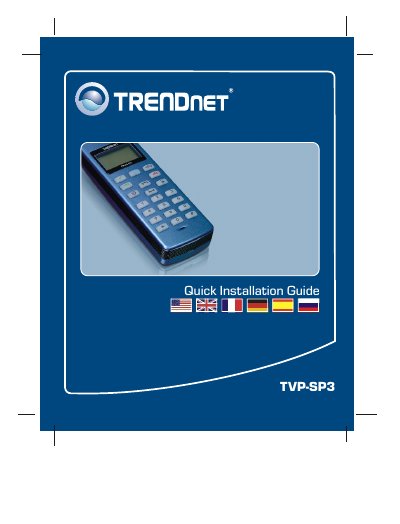
This guide walks you through installing the TVP-SP3 VoIP USB phone with Skype. It includes system requirements, step-by-step installation, a quick reference sheet for phone functions, and troubleshooting tips. The device requires a computer with USB 1.1/2.0, 300MHz CPU, 256MB RAM, and Skype installed. Drivers install automatically via included CD-ROM or online.
First, make sure your computer meets the minimum requirements. Second, ensure the USB cable is plugged in. Third, try installing to a different USB port.
Ensure you have Internet connectivity, signed into your Skype™ account, and the TVP-SP3 software icon is visible on the system tray. If not, navigate to Start -> Program Files -> TRENDnet -> TVP-SP3. Follow Section 3 steps.
Ensure the TVP-SP3 software is installed. Right-click the TVP-SP3 icon on the system tray and select Audio Device Settings. Set speaker and microphone to USB Phone. Then select Volume Settings and adjust volume appropriately.
Right-click the TVP-SP3 software icon on the system tray and select Audio Device Settings. Choose the Windows Default Audio Device for speaker and microphone, then click OK.