
Setup and charging instructions for the Razer Mouse Dock Chroma, including battery status LED colors, safety guidelines and warranty terms.
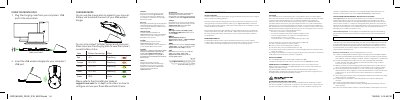
The Razer Mouse Dock Chroma is a charging dock for a Razer mouse that also extends the reach of a USB wireless dongle. To set it up, plug the charging cable from the computer's USB port to the mouse dock (cable not included) and insert the USB wireless dongle into the computer's USB port. When connected to Razer Synapse, placing the Razer mouse on the dock shows its current battery status through colored LED effects.
The guide lists the battery indicator colors, from red breathing below 5% up to static green at 100%, and points to the Online Master Guide at support.razer.com for detailed configuration instructions. It also contains safety guidelines, monthly cleaning advice, FCC and Canadian Class B notices, and the Australian limited warranty terms, which give the Razer Mouse Dock Chroma a 2-year warranty period.
| Operating temperature range | 0°C (32°F) to 40°C (104°F) |
|---|---|
| Limited warranty period (Razer Mouse Dock Chroma) | 2 years |
| Battery indicator: below 5% | Red, breathing effect |
| Battery indicator: 26%-50% | Orange, breathing effect |
| Battery indicator: 100% | Green, static effect |
| Recommended cleaning interval | Once a month |
Plug the charging cable from your computer's USB port to the mouse dock; the cable is not included.
A red breathing effect means the mouse battery is below 5%.
Connect to Razer Synapse and place your Razer mouse on the charging dock to view the current battery status.
Operate the device only within 0°C (32°F) to 40°C (104°F).