
User guide for installing, configuring, and troubleshooting the Kodak 305 Photo Printer driver on Windows systems.
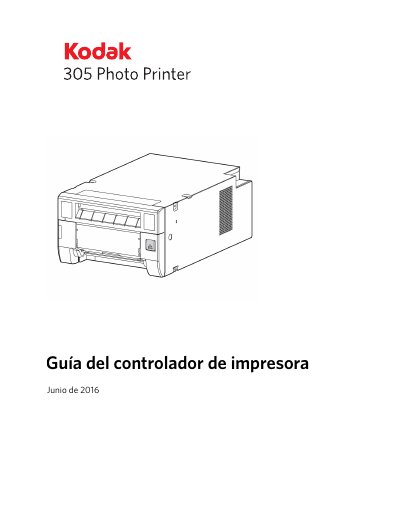
This guide provides step-by-step instructions for installing and uninstalling the Kodak 305 Photo Printer driver on Windows 7, 8, or 10. It also covers how to configure printer settings, manage color and print options, and troubleshoot common errors such as paper jams, low ink, or printer not responding. The guide assumes familiarity with Windows operating systems and requires administrative privileges for installation or removal. This manual is written in Spanish.
You need Microsoft Windows 7, 8, or 10 (latest Service Pack), 512 Mb or more RAM, a 2-meter or shorter USB cable, and a USB port compatible with USB 1.1 and USB 2.0.
Download the driver from www.kodakalaris.com/go/rss, extract the files, then run Install_Drv.exe. Follow the prompts, and if using Windows 7, connect the printer after installation.
Go to Control Panel > Devices and Printers, right-click the printer icon, and select Remove device. Then go to Programs and Features, select the driver package, and uninstall it. Disconnect the USB cable and restart the computer.