
This quick start guide shows how to set up and use the IRIS Book 5 Wifi portable scanner, covering software installation, scanning, and Wi‑Fi transfer.
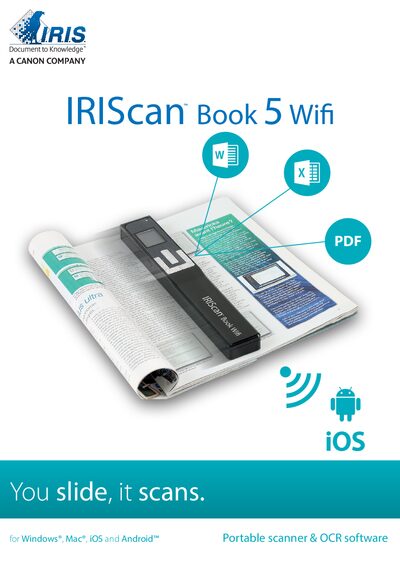
The IRIS Book 5 Wifi is a compact, battery‑powered scanner that stores scanned pages on a microSD card and can transfer files via USB, microSD, or Wi‑Fi. This guide helps you get the device up and running quickly.
It walks you through installing the bundled Readiris Pro and InstantResult Wifi 2 software, configuring scanner settings, performing scans, and moving documents to a computer, tablet, or mobile device. Safety and regulatory information are also included. This manual is written in Chinese.
| Display | 1.5" color LCD |
|---|---|
| USB Port | USB 2.0 high‑speed |
| Wi‑Fi | 802.11 b/g/n |
| Memory Card | MicroSD up to 32 GB |
| Battery | 800 mA Li‑ion |
Open a web browser, go to http://www.irislink.com/start, select the IRIScan Book 5 Wifi version, click “Download”, then run the installer.
Use the InstantResult Wifi 2 app; the scanner sends scanned content over Wi‑Fi to the app on your mobile device or computer.
The device supports 300 DPI, 600 DPI, and 1200 DPI resolutions.
Gently push the microSD card into the slot until it clicks and is locked in place.