
Steps for clearing the browser cache in Google Chrome: open Settings, expand Advanced, choose Clear browsing data, and restart the browser.
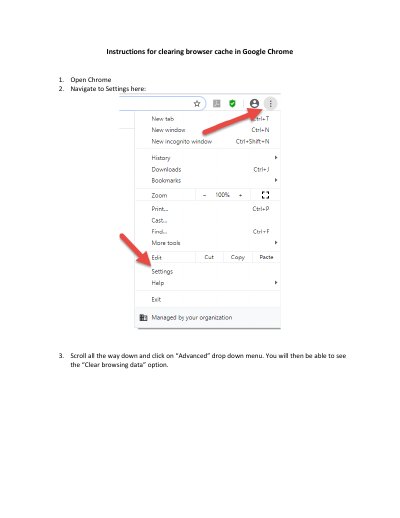
This short guide explains how to clear the browser cache in Google Chrome. It starts with opening Chrome and going to the Settings menu, then walks through the Advanced section where the Clear browsing data option is found.
The document also lists related settings for search engine, default browser and startup behavior, and describes Privacy and security options such as site settings and clearing history, cookies and cached files. The last step is to restart the browser and try again.
Open Chrome and go to Settings, scroll all the way down and open the Advanced drop-down, then choose Clear browsing data and click the Clear data button. Restart the browser afterwards.
Clearing cookies and other site data signs you out of most sites.
It frees up space, and some sites may load more slowly on your next visit.