
This guide explains how to download, install, and join EBSCO online courses using the Zoom client on computer and mobile devices.
The guide provides step‑by‑step instructions for installing the Zoom client on Windows, macOS, iOS, and Android, and shows how to join an EBSCO Zoom Webinar from a computer or mobile device. It also describes the Zoom interface functions such as audio settings, chat, hand‑raising, Q&A, and leaving the meeting.
Users are instructed to download the client from the official Zoom website, enter the meeting ID and password (often 123456), and provide a valid email address for the host. The guide notes that no Zoom account registration is required and highlights common troubleshooting tips, such as allowing network access during installation. This manual is written in Chinese.
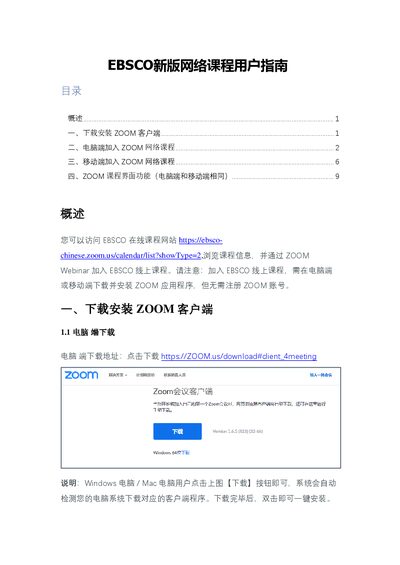
Download the installer from https://zoom.us/download#client_4meeting and run it; the system will detect your OS and install the appropriate client.
No, you can join the Zoom Webinar without registering a Zoom account.
The guide shows an example password of 123456, which can be found in the course information.