
This document introduces the user manual for the LCD KVM switch LC-1704 / LC-1708 / LC-1716. The product features a 17-inch TFT screen with a resolution of 1280x1024, an 8ms response time, and 16.2M color display. The operation includes power key, menu key, up key, down key, and auto key. The OSD control functions include color adjustment, screen adjustment, function adjustment, OSD menu adjustment, and other adjustments. The product supports a maximum resolution of 1280x1024, has a three-in-one host interface, supports OSD menu, and enhanced video quality.
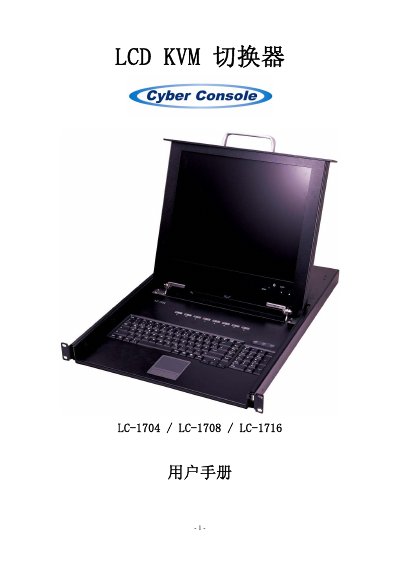
The LCD KVM switcher allows one keyboard, mouse and 17‑inch monitor to control up to 256 hosts without additional interface cards or software. It features an on‑screen display (OSD) for easy host selection, automatic scanning, and hot‑key or mouse switching.
The manual provides detailed LCD display specifications, OSD control functions, hardware requirements, wiring diagrams, installation steps for both single‑unit and cascaded configurations, system settings, firmware update procedures, and troubleshooting tips. This manual is written in Chinese.
| Display size | 17 inch |
|---|---|
| Resolution | 1280x1024 @ 75 Hz |
| Contrast ratio | 500:1 |
| Brightness | 300 cd/m² |
| Viewing angle | 140° |
| Response time | 8 ms |
| Color depth | 16.2 M colors |
| Dimensions (W×H×D) | 655 mm × 480 mm × 46 mm |
| Weight | ≈15.8 kg |
| Maximum hosts | 256 |
Restart the host computer, or press [Esc] to exit Auto Scan mode.
Restart the host computer, or press [Esc] to exit Auto Scan mode.
Power off the KVM, disconnect the dedicated cable, power the KVM back on, reconnect the cable, then power the host.
Use high‑quality KVM cables; poor‑quality cables can cause video issues.