
Reference guide for HP Deskjet D4200 series printers, provides steps on how to set up and use the printer on Windows and Macintosh systems.
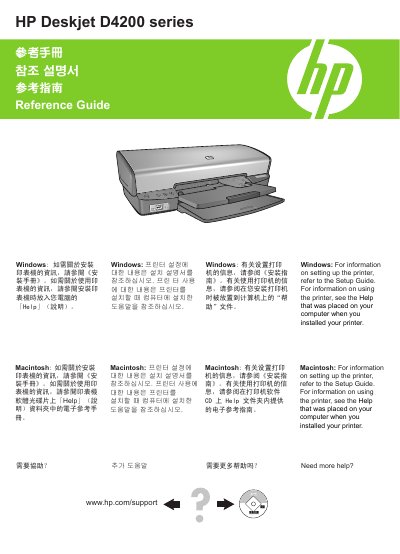
This manual provides step-by-step instructions for installing and using the HP Deskjet D4200 series printer on Windows and Macintosh systems. It covers setup procedures, printer configuration, troubleshooting common issues like paper jams and print queue errors, and USB port usage. The guide also includes information on minimum system requirements and ink usage.
The manual is multilingual, offering instructions in Chinese, Korean, and English, and includes troubleshooting tips for problems such as printer not responding, no power, or print jobs stuck in queue. This manual is written in Chinese.
Refer to the Setup Guide for installation instructions. For Windows, check the 'Help' file installed on your computer. For Macintosh, consult the Help folder on the printer software CD.
Install the HP Photosmart software that came with the printer. If the software is already installed, restart your computer.
Press the Resume button. If the jam persists, turn off the printer, unplug the power cord, open the rear access door, and remove the jammed paper. Reconnect the power and resume printing.
Ensure you are using the default printer. Check the 'Printers' or 'Printers and Faxes' folder to confirm the printer icon has a checkmark. If multiple icons exist, delete the extra ones. Ensure the printer is not set to 'Pause Printing'.