
The Dell™ E-Port Plus II is an innovative docking station solution that connects your laptop to a variety of devices, including monitors, printers, keyboards, mice, and other peripherals. It also offers a variety of ports, including USB 3.0, HDMI, DVI, and Ethernet ports.
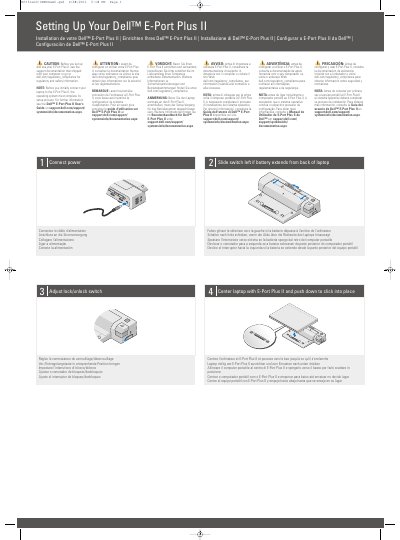
The Dell E-Port Plus II is a docking accessory for a laptop. Before setting it up, read the support documentation that shipped with the computer or visit dell.com/regulatory_compliance for regulatory and safety information. Before the first connection, the laptop's operating system must finish its setup process.
To set it up, connect power, slide the switch left if the battery extends from the back of the laptop, center the laptop on the E-Port Plus II and push down until it clicks, then adjust the lock/unlock switch. The unit provides connectors including network, parallel, two DVI, two audio, three USB 2.0, AC adapter, two DisplayPort, VGA, serial, two USB 2.0/3.0, two PS/2, eSATA, and an E-Monitor Stand connector.
| DVI connectors | 2 |
|---|---|
| USB 2.0 connectors | 3 |
| DisplayPort connectors | 2 |
| audio connectors | 2 |
| AC adapter connector | 1 |
The operating system must complete its setup process first.
See the support documentation that shipped with your computer or visit dell.com/regulatory_compliance.
Slide the switch to the left.
Adjust the lock/unlock switch.