
The Dell Vostro 15 7570 Quick Start Guide introduces the features and characteristics of the product.
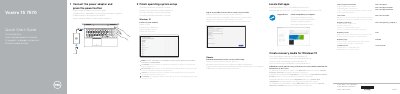
The Dell Vostro 15-7570 quick start guide explains initial setup: connect the power adapter and press the power button, locate Dell apps such as SupportAssist, and finish operating system setup for Windows 10 or Ubuntu. It also covers creating Windows 10 recovery media, connecting to a network, and signing in to a Microsoft account or creating a local account.
The guide lists the computer's features and ports, including the camera, VGA, HDMI, USB Type-C with Thunderbolt3, USB 3.1 Gen 1, SD card reader, network and power connectors, and Nobel Wedge lock slot. It includes shortcut keys and notes to download Dell Power Manager (DPM 3.0) before connecting a Dell docking station.
| Regulatory model | P71F |
|---|---|
| Regulatory type | P71F001 |
| Computer model | Vostro 15-7570 |
| VGA port | 1 |
| HDMI port | 1 |
| USB Type-C port | Thunderbolt3 |
| SD card reader | 1 |
| Security lock slot | Nobel Wedge |
Connect the power adapter and press the power button.
See the Owner’s Manual at Dell.com/support/manuals.
Download Dell Power Manager (DPM 3.0) from Dell.com/support before connecting the docking station.
In Windows search, type Recovery, click Create a recovery media, and follow the on-screen instructions.