
Dell Vostro 15 3000 Series Laptop Quick Start Guide
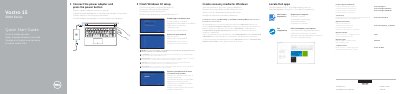
This is Dell's Quick Start Guide for the Vostro 15 3000 Series laptop, whose computer model is given as Vostro 15-3565. Page one walks through initial setup: connecting the power adapter and pressing the power button, finishing Windows 10 setup, enabling Support and Protection, connecting to a network, signing in with a Microsoft account or creating a local account, and creating recovery media for Windows. It also points to Dell apps such as Dell Product Registration and Dell SupportAssist, and lists support, contact and regulatory web addresses.
Page two is a labeled illustration of the computer's features, from the camera, microphone and power button to the optical drive, USB 2.0 and USB 3.0 connectors, VGA and network connectors, battery and Service Tag label. It ends with a list of shortcut keys for audio, playback, display, search, brightness, wireless and the Fn-key lock, and a note pointing to the Owner's Manual at Dell.com/support/manuals. The guide text is repeated in Czech, Hungarian, Polish and Croatian.
| Regulatory model | P47F |
|---|---|
| Regulatory type | P47F006 |
| Computer model | Vostro 15-3565 |
| Setup operating system | Windows 10 |
| USB connectors | USB 2.0 connectors and USB 3.0 connector |
Connect the power adapter to the computer and press the power button.
Enter the password for the wireless network access when prompted.
In Windows search type Recovery, click Create a recovery drive and follow the instructions on the screen.
Dell points to the Owner's Manual at Dell.com/support/manuals.