
The Dell Precision 3510 Quick Start Guide provides instructions on how to use the Dell Precision 3510 laptop.
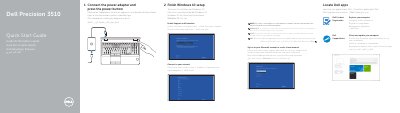
This two-page quick start guide for the Dell Precision 3510 computer walks through the first-time setup: connecting the power adapter and pressing the power button, finishing Windows 10 setup, enabling Support and Protection, connecting to a network, and signing in to a Microsoft account or creating a local account. It also points to Dell apps such as Product Registration and Dell SupportAssist, and lists product support, contact and regulatory compliance web addresses.
The second page is a numbered illustration key naming the computer's features, including the network connector, VGA connector, optional SIM-card slot, HDMI 1.4 connector, USB 3.0 connectors, SD memory-card reader, fingerprint reader, Thunderbolt 3 connector, dock connector and service-tag label. The text is printed in English, French, Portuguese, Turkish and Arabic. Regulatory model P48F and regulatory type P48F001 are given, with the computer model listed as Dell Precision 3510 and a 2015 copyright.
| HDMI connector | HDMI 1.4 |
|---|---|
| USB 3.0 connector with PowerShare | Yes |
| Memory-card reader | SD |
| Thunderbolt 3 connector | Optional |
| SIM-card slot | Optional |
| Regulatory model | P48F |
| Regulatory type | P48F001 |
Connect the power adapter and press the power button.
Enter the password for the wireless network access when prompted.
Dell lists Dell.com/support for product support and Dell.com/support/manuals for manuals.
Dell SupportAssist is listed for checking and updating your computer.