
Dell OptiPlex SFF AIO Stand 1KAIO-01 User Guide

Dell™ OptiPlex™ All-in-One Stand User Guide
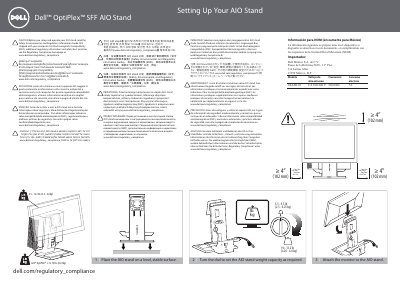

Dell OptiPlex SFF AIO Stand 1KAIO-01 User Guide - cover page
Brand
DELL
Category
Other Computer Accessories
Document type
Installation Guide
Language
English
Pages
2
File format
PDF
File size
1.5 MB
Published
24 November, 2023
Updated
24 November, 2023
MD5 checksum
B6E0D0BDB0AF32955DC3277D69E51977

About this manual

This guide explains how to set up the Dell OptiPlex SFF AIO Stand, from placing it on a level, stable surface and setting the weight dial to attaching the monitor, routing cables, sliding in the computer chassis, and locking it in place.

It also lists supported weight ranges, minimum clearance, screw sizes, cable storage guidance, and regulatory information for Mexico.

What's inside

  • Setting Up Your AIO Stand
  • Place the AIO stand on a level, stable surface
  • Turn the dial to set the AIO stand weight capacity as required
  • Attach the monitor to the AIO stand
  • Connect the cables to the monitor and route through front slot
  • Slide the computer chassis into the AIO stand
  • Connect the cables to the computer
  • Slide the switch to lock the computer to the AIO stand
  • Install your security accessories
  • Información para NOM (únicamente para México)

Specifications

Supported weight range5.5 - 13.2 lb (2.5 - 6.0 kg)
Dell OptiPlex weight limit≤ 13.75 lb (6.24 kg)
Lower weight dial setting5.5 - 9.3 lb (2.5 - 4.25 kg)
Upper weight dial setting9.4 - 13.2 lb (4.26 - 6.0 kg)
Minimum clearance≥ 4 in (102 mm)
Screw diameter range3 mm to 8 mm

Frequently asked questions

What weight range does the Dell OptiPlex SFF AIO Stand support?

The stand supports systems weighing 5.5 to 13.2 lb (2.5 to 6.0 kg).

What is the maximum weight for a Dell OptiPlex system on this stand?

Dell OptiPlex systems must weigh no more than 13.75 lb (6.24 kg).

How much clearance is required around the stand?

At least 4 inches (102 mm) of clearance is required.

Where should access cables be stored?

Store any access cable in the cable tray.

Download PDF (1.5 MB)

More DELL Manuals


View all DELL manuals →