
The Dell 5230/5350 Quick Reference Loading paper and specialty media Loading the 250-sheet or 550-sheet tray
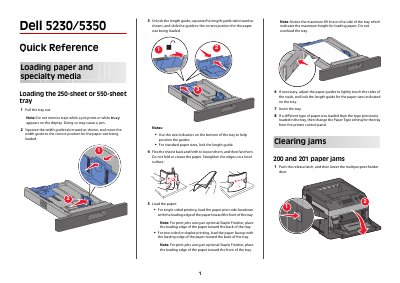
The guide explains how to load paper and specialty media into the 250-sheet or 550-sheet tray, including adjusting width and length guides, orienting paper for single-sided or duplex printing, and setting the paper type on the control panel.
It also provides step-by-step instructions for clearing paper jams, covering jam codes 200/201 (toner cartridge area), 202/203 (rear door), and 241–245 (paper trays), with safety warnings about hot surfaces and toner exposure.
| Paper tray capacity | 250-sheet or 550-sheet |
|---|
Pull the tray out, set the width and length guides for the paper size, flex and fan the sheets, load the paper with the correct orientation, adjust the guides, insert the tray, and change the Paper Type setting if a different paper type was loaded.
Push the release latch and lower the multipurpose feeder door, open the front cover, remove and set aside the toner cartridge, remove the jammed paper, reinstall the cartridge, close the front cover and multipurpose feeder door, then press .
If the paper is exiting the printer, pull it out and press .; if it is not exiting, pull down the top rear door, slowly remove the jammed paper, close the door, and press .
Pull out the tray indicated on the display, remove any jammed paper, insert the tray, and press .; if the jam message persists for a 250-sheet or 550-sheet tray, remove the tray, remove the jammed paper, insert the tray, and press .