
This document introduces the functions and usage methods of Pure Michigan Talent Connect.
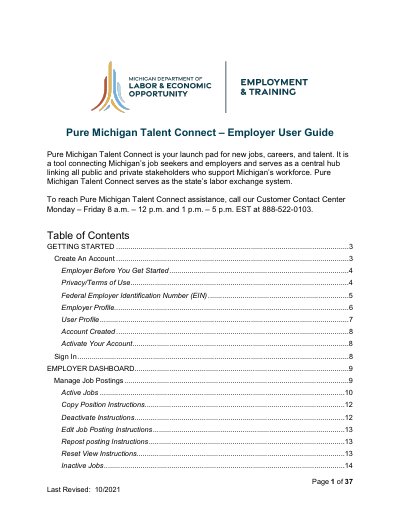
This guide helps employers create and manage accounts on Pure Michigan Talent Connect, Michigan’s job posting and talent matching platform. It covers account setup, job posting management, candidate search features, and account activation steps. Employers must provide an EIN and complete profile information to validate their account.
The dashboard allows employers to view active and inactive jobs, export job data, and manage candidate searches. Additional sections cover integrating with WBLOMS and handling account validation workflows.
Pure Michigan Talent Connect is a tool connecting Michigan’s job seekers and employers and serves as a central hub linking all public and private stakeholders who support Michigan’s workforce.
An activation email from [email protected] will be sent to the email address on the account. Click the URL in the email to activate account. If you have not received the activation email, be sure to check your spam or junk email folder.
Go to www.mitalent.org and click “Sign In” in the upper right corner. Enter your email address and click “Next”. Choose ‘Employer’ in the Role drop-down menu, then click “Next”. Then, enter your password and click the “Submit” button.