
EinScan HX User Manual, introduces the system requirements, scanner setup, software setup, software scan workflow, calibration, preparation before scanning, projects, scanning, project group, meshing and other contents.
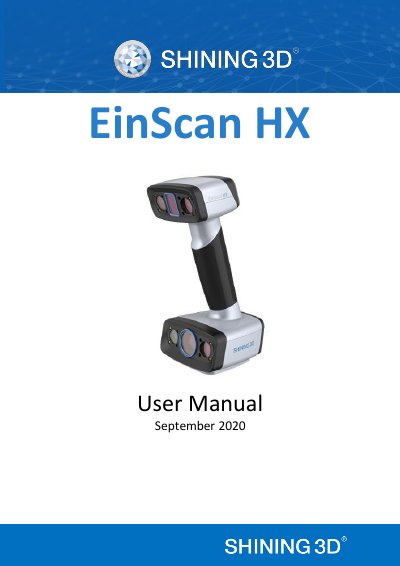
This manual is for the Shining 3D EinScan HX handheld 3D scanner. It describes the scanner as using combined LED and laser structured light, with fast color-textured scanning of common objects and laser scanning capability for black and shiny objects.
The document covers system requirements, scanner and software setup, scan workflow, calibration, scan modes, project handling, meshing, data export, third-party software, model preview, and support contacts.
| Laser class | Class II |
|---|---|
| Required graphics card | Nvidia GeForce GTX 660 / Nvidia Quadro P1000 |
| Recommended graphics card | NVIDIA GTX serial cards higher than GTX1080 |
| USB port | 1 of 3.0 port |
| Operating system | win10 64bits |
| Required CPU | i5 3th Gen |
| Recommended CPU | i7-8700 or higher |
| Required screen resolution | 1920*1080 DPI: 100%; 125% |
| Recommended screen resolution | 3840*2106 DPI: 100%; 200% |
The manual lists [email protected] for EinScan support.
Model Preview can load STL, OBJ, PLY, ASC, or 3MF files.
GEOMAGIC ESSENTIALS and SOLID EDGE SHINING 3D EDITION can be started.
The MTL and JPG files must have the same name and be in the same folder as the OBJ file.