
This document is a quick start guide to the Harmony device. It introduces the features and usage of the Harmony device to the user.
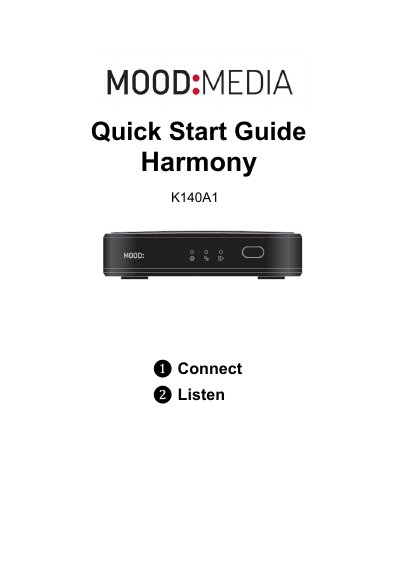
This is the Quick Start Guide for the Mood Media Harmony A/V player, model K140 (listed as K140A1 and MAVPSG1 on the included Regulatory and Safety Sheet). It walks through what is in the box, the front and back panel connections, and the order in which to connect the audio, Ethernet, HDMI and power cables to replace an older music player.
The guide also explains the power, Ethernet and playback status lights, the reset button on the back of the unit, and where to call for help (800.345.5000 or moodmedia.com). The last pages reproduce the Regulatory and Safety Sheet with warnings, FCC Part 15 notes and safety agency listings. A video display is not required for a music-only installation.
| Audio Outputs | Digital and analog |
|---|---|
| Video Outputs | Digital and analog; yellow connector for Composite video |
| External power adapter plug | 5.5mm |
| Factory volume setting | 100% |
| Network connection | Ethernet or WiFi |
| Minimum operating distance | 20cm between radiator and body |
Connect the 3.5mm a/v plug and RCA audio connectors first, then the Ethernet cable (and HDMI cable if applicable), then the 5.5mm power adapter plug.
Power is red when power is available but the device is off and green when it is on; Ethernet is yellow with no connection and green when connected; playback is red when content is not playing and green when it is playing.
Yellow means there is no Ethernet or WiFi connection, so the network link to the Harmony device needs to be checked.
Call toll-free at 800.345.5000 or visit the Client Support Hub at moodmedia.com.