
Vimedix user guide, introduces the specifications, precautions and warnings of the product
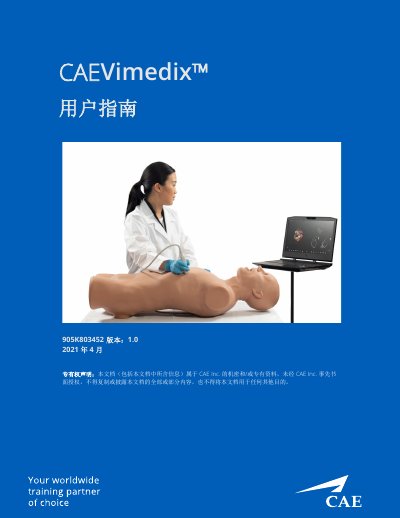
This is the CAE Vimedix user guide, document number 905K803452, version 1.0 dated April 2021, for software version Vimedix 3.2. It covers the ultrasound simulation system made up of the Bob 1.3 and Catherine mannequins, a laptop, a power converter and cable, a wireless mouse and an external motion tracker, along with optional probes (phased, TEE, curved and endovaginal) and a mask and additional case/pathology sets. The guide opens with specifications, cautions and warnings, and electrical safety notes.
The rest of the guide walks through setting up the workspace and laptop, connecting the hardware, starting the simulator, accepting the license agreement and calibrating probes. It then explains the interface and toolbars, enhanced reality display, loading pathologies in standard and stealth modes, using probes and preset views, visibility, section and beam tools, 2D and 3D layouts, ultrasound modes, freeze, measurements, annotations, echo reports, capture and recording, training tools, screen sharing software, keyboard shortcuts and mouse control, Vimedix pathology codes, and a help and FAQ chapter with CAE Healthcare customer service contacts. This manual is written in Chinese.
| Bob 1.3 mannequin size | approx. 31" × 17" (78 cm × 43 cm) |
|---|---|
| Bob 1.3 mannequin weight | 31.5 lbs (14.3 kg) |
| Catherine mannequin size | approx. 38" × 18.5" (97 cm × 47 cm) |
| Laptop storage and memory | 1 TB hard drive; 32 GB RAM |
| Laptop operating system | Windows 10 |
| Laptop weight | 10.7 lbs (4.9 kg) |
| Motion tracker function | six degrees of freedom real-time motion tracker at 60 Hz |
| Power supply | 110 / 240 V, 50 / 60 Hz |
| Operating temperature range | 41 °F – 95 °F (5 °C – 35 °C) |
Unplug the probe from the computer, place it on the mannequin's abdomen and reconnect it to the Sensor 1 port; also check that the mannequin is properly plugged into the power connector and restart the simulator.
Check that the probe is properly calibrated and that no metal surfaces, beds or filing cabinets are near the simulator; other Vimedix mannequins must be at least 6 feet apart.
Make sure the simulator is connected to the internet, that your network administrator has authorized access to the Vimedix update server, and accept automatic updates when the simulator starts.
Click the Help tab in the left menu of the main screen; it contains files, websites, common questions and equipment and software resources.