
This tutorial provides detailed instructions on how to set up your Moxa so you can access the Moxa’s web configuration page and program it.
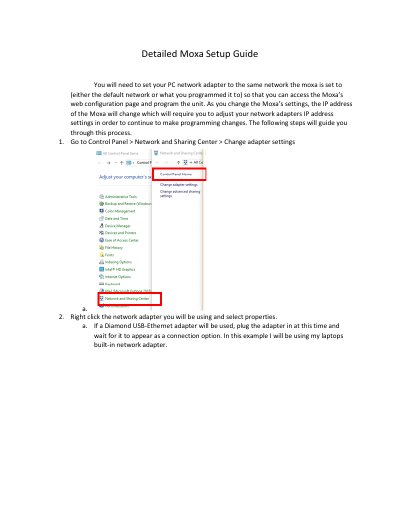
This guide walks you through setting up a Moxa device by configuring your PC’s network adapter to match the Moxa’s IP subnet. It covers steps like assigning static IP addresses, connecting via Ethernet or wireless, resetting the device, and updating firmware. The guide also explains how to switch between wired and wireless modes and how to avoid IP conflicts during setup.
After initial setup, you can access the Moxa’s web interface to configure network settings and upgrade firmware if needed. The guide includes specific IP addresses and subnet masks for default and custom configurations, and notes that power cycling is required to switch between wired and wireless modes.
The default wired IP address is 192.168.126.254.
A power cycle is required to switch between modes, as the unit boots to one mode at boot time based on whether a network cable is plugged in.
Change the last set of numbers in the IP address to a unique, unused number on your network, and ensure your PC’s IP address is on the same subnet.