
This guide instructs users how to connect Hitachi refrigerator to smartphone or tablet. Users are required to register/create an account first, then enter the router password. Finally, set the refrigerator to wireless LAN mode and turn on the pairing mode to complete the connection.
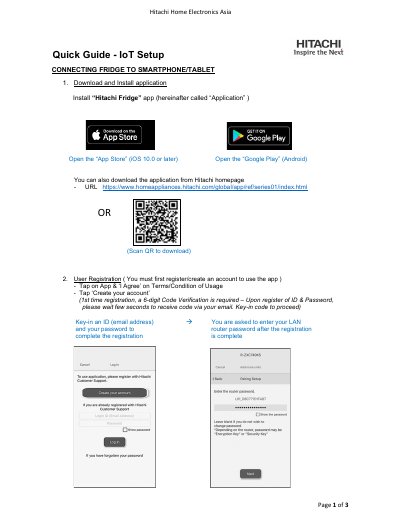
This guide explains how to install the Hitachi Fridge app, register an account, and pair the refrigerator with a smartphone using 2.4GHz Wi-Fi. It covers app setup, wireless LAN configuration, and final pairing steps. The app offers remote control, food management, and support features.
The refrigerator must be set to pairing mode by holding the 'Vacuum' button on the control panel. After pairing, the app allows users to control settings, manage food lists, and access support resources.
Download from the App Store (iOS 10.0 or later) or Google Play (Android), or scan the QR code on the Hitachi homepage.
You must create an account by entering an email address, password, and a 6-digit verification code sent to your email.
Set the refrigerator to pairing mode by holding the 'Vacuum' button on the control panel for 3 seconds until the WLAN indicator blinks, then connect via 2.4GHz Wi-Fi.