
This document describes how to initialize the Leica Tracker in SpatialAnalyzer.
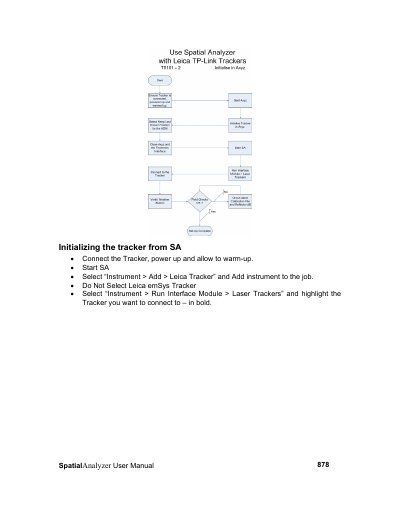
The Spatial Analyzer User Manual (878) provides step‑by‑step instructions for connecting a Leica Tracker. It covers powering up the tracker, adding it in the software, selecting the correct calibration (.mdb) and Leica .pgm files, and ensuring the tracker is properly initialized, including ADM beam‑break behavior settings.
Additional sections describe how to verify the Weather Station connection, configure the tracker calibration in Axyz, and reload reflector definitions. The guide also notes the required Leica .pgm file version and offers troubleshooting tips for connection issues.
| Leica .pgm file version | 2.89 |
|---|
Power up the tracker, start Spatial Analyzer, select Instrument > Add > Leica Tracker, choose the tracker in the Laser Trackers list, and confirm the connection after selecting the correct .mdb and .pgm files.
Version 2.89 of the Leica .pgm file should be used; version 2.86 is not supported.
Check that the Weather Station is plugged into the PC’s serial port, then in Spatial Analyzer select Devices > Weather > Current Values/Deltas to see live data.
Re‑select the .mdb and .pgm files and try again; the connection may require a few attempts.