
This file is the operating and programming manual for the Samsung SER-6500/6540 electronic cash register, including installation, paper insertion, clearing, initialization, keyboard setting, register number programming, service functions, communication testing, programming, P-position programming scanning, S-mode key relocation programming, option programming, tax rate programming, function key programming, etc.
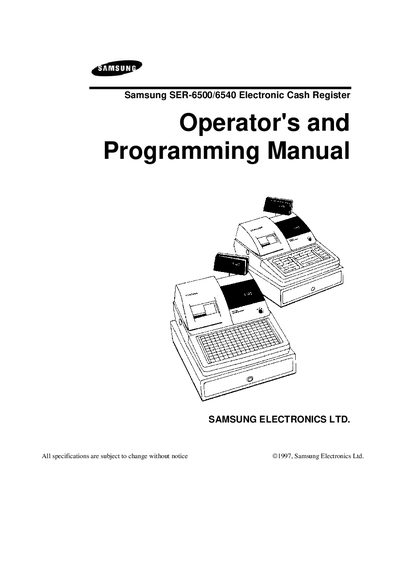
This manual covers the complete setup and operation of the Samsung SER-6500 and SER-6540 electronic cash registers. It includes detailed installation steps for the ribbon cassette and receipt/journal paper, as well as procedures for clearing the register and restoring default keyboard settings.
The document also describes programming of keys, tax rates, PLUs, departments, clerks, and various system options. Error‑message definitions and command reference tables are provided for troubleshooting and advanced configuration.
| Paper feed length for receipt roll | about 150 mm |
|---|
Turn the key to S‑Mode, unplug the register, hold down the third key from the lower right, then plug the register back in to issue an all‑clear receipt.
It indicates that the buffer for check entries has reached its capacity.