
This document introduces the basic use of the UBiQUiO keyboard, including system requirements, downloading driver, using Skype, etc
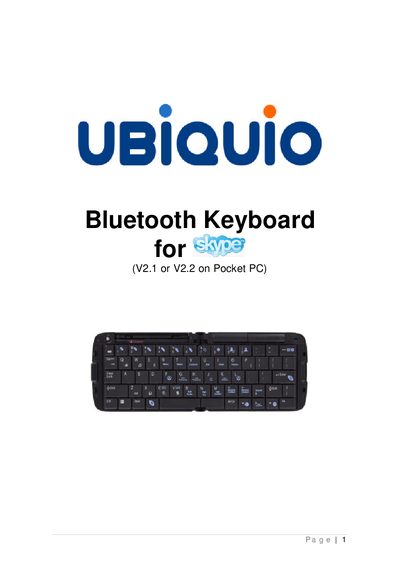
This manual covers everything you need to get the UBiQUiO Bluetooth Keyboard up and running with Pocket PC devices. It includes system requirements, driver download and installation, unlocking the driver, and how to turn the keyboard on and connect it to your device.
Detailed sections explain using the keyboard with Skype and other Pocket PC applications, shortcut keys, and a declaration of conformity. Follow the step‑by‑step instructions to enjoy full‑size typing on your Pocket PC.
| Minimum operating system | Windows Mobile 5.0 Pocket PC or Pocket PC 2003 |
|---|---|
| Minimum CPU | 400 MHz+ |
| Network requirement | Wi‑Fi recommended; 3G or EDGE also supported |
| Battery type | 2 × AAA |
| Connection profile (left switch) | Serial Port Profile (SPP) – for Pocket PC 2008 devices |
| Connection profile (right switch) | Human Interface Device (HID) – for Pocket PC 2005 devices |
Open Start → Settings → System, select the biHID application, then follow the “Unlock your Driver” procedure on the website.
Slide the battery cover to the right, insert two AAA batteries, and move the micro‑slider switch left or right to select the appropriate profile.
Press the Connect button on the keyboard, tick the Activate Driver box in the biHID app, and wait for the “Connected” message.
Use the keyboard shortcuts shown on the Skype Status screen to select Offline, Online, Away, Do Not Disturb, etc.