
This document is the Lenovo V370 Installation Guide, which mainly introduces the composition of the computer and the installation of battery, power on, configuration of operating system, etc.
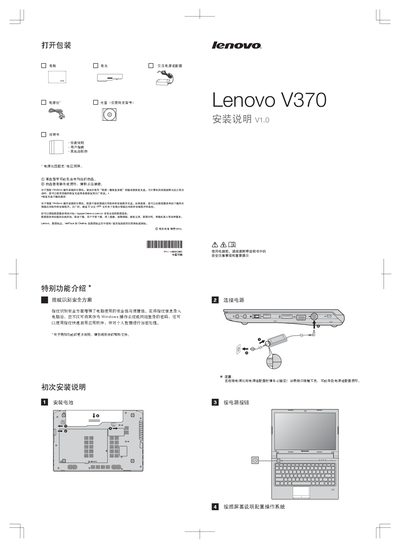
This guide starts with unpacking the laptop, checking that the power adapter, power cable, and optional optical disc are present, and safely connecting the power source. It also reminds users to tighten connections to avoid adapter damage and to create a recovery disc using Lenovo OneKey Recovery for Windows systems.
The manual then describes special functions such as the fingerprint security option, the OneKey rescue button, the graphics‑chip switch, the wireless communication switch, and the built‑in webcam (available on specific models). It notes that HDMI output works only in discrete‑graphics mode and that the display uses LED backlight technology. This manual is written in Chinese.
| Built‑in webcam | Available on specific models |
|---|---|
| Fingerprint sensor | Provides security and quick login |
| Display backlight | LED technology |
| HDMI output | Supported only in discrete‑graphics mode |
| Wireless communication switch | Turns all wireless devices on or off |
Press the OneKey rescue button while the computer is powered off; the system will start the rescue environment and can restore to factory or a user backup.
In Windows, slide and release the graphics‑chip switch to change which GPU the system uses.
Use the wireless communication switch to turn wireless radios on or off.
Make sure the power cable and adapter are firmly connected; a loose connection may damage the adapter.