
The document provides instructions on how to use the PoC Client Demo, including the steps and precautions.
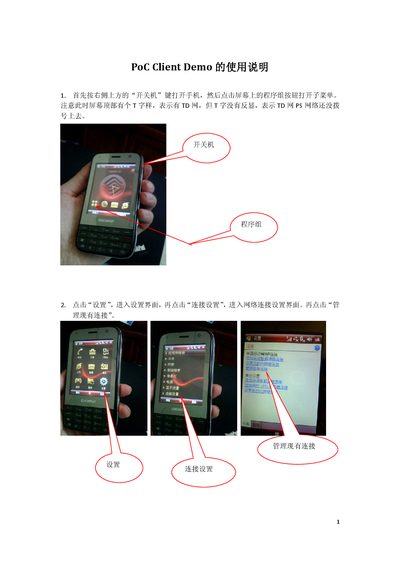
The manual starts with turning on the phone using the power button, then navigating to Settings → Connection Settings to configure the TD network. After establishing a connection, you open the wpoc application, log in with a single tap, and can see your own number and contacts. Selecting a contact and pressing the "call" button creates a session, and the remote phone will display an "Answer call" prompt.
During a call you use the Talk button to speak and the Over button to stop speaking; multiple sessions can exist simultaneously, so you may need to select the correct session line before talking. To leave a session, long‑press the session line and choose Leave. When finished, log out via the Logout option before pressing OK to exit the app. A data cable can be used for charging and file transfer, but the app may not work while the cable is connected because it can be treated as a modem. This manual is written in Chinese.
| Data cable functionality | Can be used for charging and file transfer |
|---|---|
| Simultaneous sessions | Supports multiple simultaneous sessions |
Select a logged‑in contact and tap the "call" button to create a session.
Long‑press the session line, choose "Leave" from the menu, or press the Over button after speaking.
Tap "Logout" first, then press the OK button to exit; do not press OK directly.