
User guide for configuring and installing supported printers with Weintek HMI systems, including serial, network, and PPD file setups.
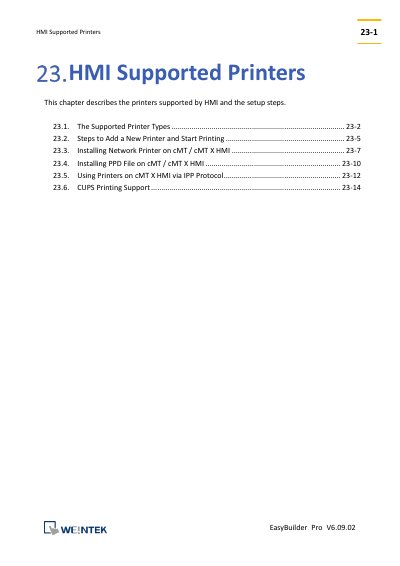
This manual details printer compatibility and setup for Weintek’s EasyBuilder Pro HMI software, version V6.09.0. It covers serial printers like EPSON ESC/P2 and HP PCL models, network printer installation, PPD file handling, and CUPS support. Configuration steps include setting communication parameters, installing drivers, and using IPP or CUPS protocols for printing.
The guide also explains how to add printers via system settings, use remote printer servers, and troubleshoot compatibility issues by consulting Weintek distributors or verifying printer support through Linux CUPS testing. This manual is written in Chinese.
Supported printer types include SP-M, D, E, F serial printers, EPSON ESC/P2 series, HP PCL series, Axiohm A630, SPRT, EPSON TM-L90, EPSON TM-T70, BRIGHTEK WH-A19, BRIGHTEK WH-E19, BRIGHTEK WH-E22, BRIGHTEK WH-C1/C2, and Remote Printer Server.
Open system settings, navigate to [Printer] » [Install network printer], and select the printer from the network list. The driver will replace the previous one.
Place the printer’s PPD file in the ppd folder under the EasyBuilder Pro installation directory, then click [Refresh] in [System Parameter Settings] » [Model] tab.
The printer must support CUPS. Test compatibility by installing CUPS on a Linux PC, adding the printer via AppSocket, and importing the PPD file into EasyBuilder Pro.