
University of Exeter Office365 Email Setup Guide for Android

Step-by-step instructions for configuring an Office365 University of Exeter email account on an Android smartphone, including security setup.
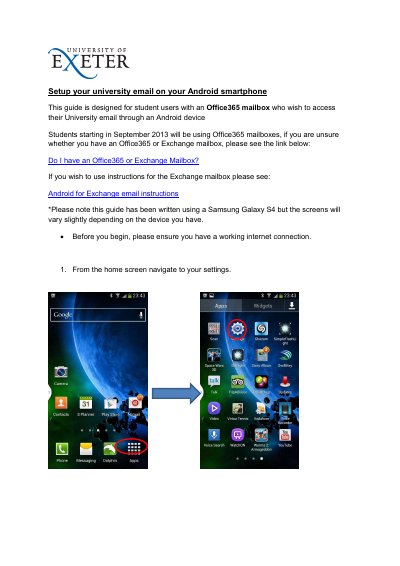

University of Exeter Office365 Email Setup Guide for Android - cover page
Brand
University of Exeter
Category
Mobilephone Accessories
Document type
User Manual
Language
English
Pages
12
File format
PDF
File size
1.4 MB
Published
16 October, 2026
Updated
16 October, 2026
MD5 checksum
BF0CB0C0679193158535D3AC5F3F6C39

About this manual

This guide provides step-by-step instructions for setting up a University of Exeter email account on an Android smartphone using Office365. It covers navigating device settings, entering credentials, and configuring the Microsoft Exchange Active Sync server.

What's inside

  • Setup your university email
  • Add an account
  • Enter email address and password
  • Configure additional information
  • Allow remote server control
  • Choose synchronization settings
  • Specify account name
  • Set up PIN code
  • Download and view email

Frequently asked questions

What email format is required for the University of Exeter?

You must enter your email address in the format [email protected].

Which server address should be used for the Exchange connection?

The Exchange server needs to be set to outlook.office365.com.

Is a PIN code required to use the Exeter Email?

Yes, you must set up a four digit PIN code to unlock the phone or tablet.

Download PDF (1.4 MB)