
The U2 Video Conference Control Keyboard User Manual provides setup, interface, connection and configuration instructions for VISCA, ONVIF and PELCO protocols.
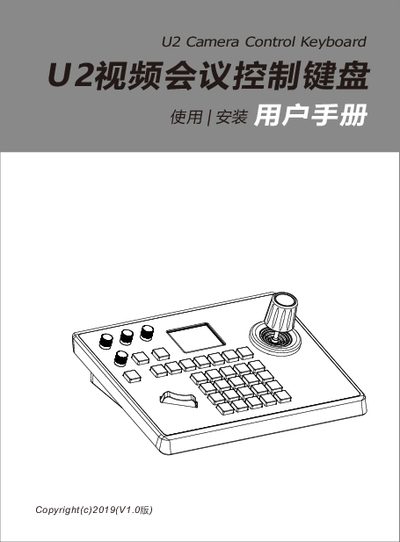
The U2 Video Conference Control Keyboard is designed for easy control of video‑conference cameras. It features a CNC‑aluminium top cover, an aluminium die‑cast base, an industrial‑grade LCD module, and an imported variable‑speed four‑dimensional joystick for precise pan, tilt and zoom operations. The keyboard supports both network and analog control modes and is compatible with VISCA, ONVIF, PELCO‑P and PELCO‑D protocols.
The device includes a built‑in web server for configuration, standard PoE power, and can manage up to seven cameras simultaneously. Connections are made via RS232, RS422 or RS485 buses, and the system offers functions such as auto‑white‑balance, auto‑exposure, auto‑focus, and quick camera selection through numbered shortcut keys. Firmware upgrades, configuration import/export, and factory reset are also supported through the web interface. This manual is written in Chinese.
| Power supply | DC 12 V 2 A ±10 % |
|---|---|
| Power option | Standard PoE |
| Network interfaces | RS232, RS422 |
| Maximum cameras supported | 7 |
| Supported protocols | VISCA, ONVIF, PELCO‑P, PELCO‑D |
| Joystick type | Imported variable‑speed four‑dimensional joystick |
| Zoom switch type | Boat‑type switch |
Press the middle button of the joystick; a long press switches to analog mode, while a short press toggles back to network mode.
Connect the keyboard and a computer to the same LAN, open a browser, enter the keyboard’s IP address, log in with username admin and no password, then select a camera number (1‑7) and choose the desired protocol (ONVIF, VISCA, etc.) and enter the camera’s IP, port, username and password.
It uses a 5.5 mm × 2.1 mm DC power connector with a 12 V 2 A supply (±10 %).
The keyboard can control up to seven cameras simultaneously.