
Quick installation guide for the TP-Link MR200 AC750 4G LTE router, covering hardware setup, LED status, and initial configuration.
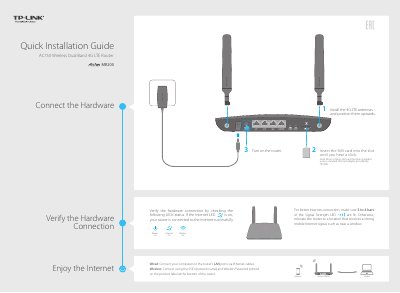
This document serves as a Quick Installation Guide for the TP-Link MR200 AC750 4G LTE Router. It provides instructions on connecting hardware, including 4G LTE antennas and SIM cards, and verifying the initial hardware connection via LED status indicators.
Verify that the computer is set to obtain an IP address automatically, ensure the URL is correct, try another browser, reboot the router, or disable and enable the network adapter.
Check the SIM card type and service area, verify credit, check LAN connection, verify ISP parameters (APN, Username, Password), check PIN settings, check Data Limit, and ensure Mobile Data and Data Roaming are enabled.
Press and hold the WPS/RESET button on the rear panel until the Power LED starts flashing, or use the Factory Restore option in the web management page.
Check the default password on the product label, or log in to the web management page to retrieve or reset the password.