
Telstra guide for setting up a self-install nbn connection over Fibre to the Premises (FTTP) or Fixed Wireless, with Wi-Fi setup and troubleshooting.
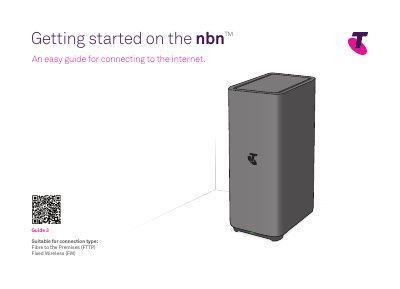
This Telstra guide (Guide 3) walks through connecting to the internet on the nbn using a self-install kit. It is written for two connection types: Fibre to the Premises (FTTP) and Fixed Wireless (FW). Before starting, the guide asks you to check whether you have medical, fire, emergency lift or back-to-base security alarms, and to unplug telephones, modems, ADSL filters and fax machines from your telephone wall sockets.
The guide then lists the parts you need, explains how to identify your nbn Connection Box, gives the set up steps and shows how to connect your devices via Wi-Fi. It closes with troubleshooting, FAQs and information on Telstra Smart Wi-Fi Boosters for improving Wi-Fi coverage, plus support details through the My Telstra App and telstra.com.au.
| Suitable connection types | Fibre to the Premises (FTTP) and Fixed Wireless (FW) |
|---|---|
| Modem included | Telstra Smart Modem 3 |
| Cable included | Cable with red and yellow ends (WAN) |
| Power adaptor | Pre-connected to the modem |
| nbn Connection Box mounting | Attached to the wall or a stand-alone unit |
It covers Fibre to the Premises (FTTP) and Fixed Wireless (FW).
Unplug all devices such as telephones, modems (including ADSL filters) and fax machines from your telephone wall sockets, because these sockets will no longer work after you switch.
Contact your equipment providers to check that the services you rely on, such as medical, fire and security alarms, will work on the nbn network.
Use the Get Help feature on the My Telstra App, or visit telstra.com.au/support/category/broadband/nbn/how-to for more information.