
User manual for the Starvedia IC502W wireless rotating network camera covering installation, web settings, features and troubleshooting.
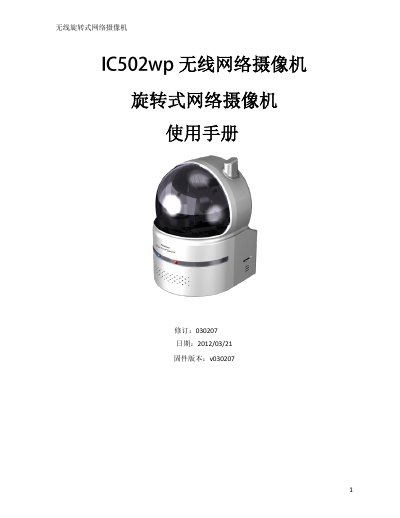
The Starvedia IC502W is a wireless rotating network camera designed for easy plug‑and‑play installation. The manual guides users through hardware setup, connecting to wired or Wi‑Fi networks, and using the CamView software on PCs or smartphones to view live video.
It also details advanced functions such as NAS recording, email/FTP alerts, 3GPP/ISMA mobile streaming, and firmware upgrades, plus a troubleshooting section for common connectivity and image‑quality issues. This manual is written in Chinese.
| Power Supply | 12 V / 1 A |
|---|---|
| Wireless Interface | IEEE 802.11n 90‑150 Mbps |
| Image Sensor | RGB VGA 1/4" CMOS |
| Lens | 3.2 mm, F2.0, 60.3° field of view |
| Video Compression | H.264 baseline profile level 3.1 |
| Maximum Resolution | 640 × 480 px at up to 30 fps |
| SD Card Capacity | Up to 32 GB |
The likely cause is insufficient network bandwidth; try a faster Internet connection or lower the camera’s bandwidth setting in CamView or the web interface.
Yes. You can record video/audio with CamView, store recordings on a NAS, or save them locally to a Micro‑SD card up to 32 GB.
Increase the “low‑light sensitivity” setting to High or Very High in the Image Settings page or via the web interface.
Yes. When directly connected, the camera uses an auto‑assigned IP (169.254.xxx.xxx) and can be accessed from CamView after about a minute.