
This manual provides calibration, assembly, and software usage instructions for the RoboPeak Laser Projection Virtual Keyboard Kit.
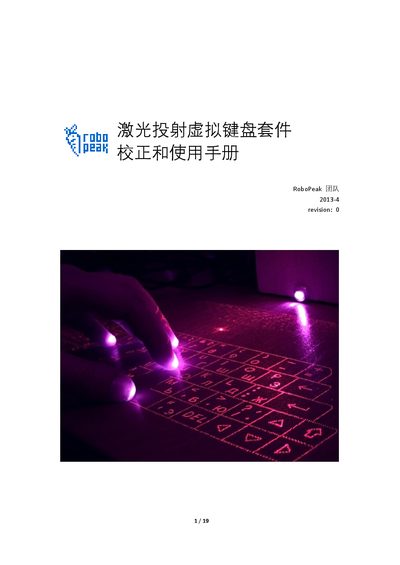
The RoboPeak Laser Projection Virtual Keyboard Kit is an open‑source laser keyboard solution that projects a virtual keyboard onto a flat surface. After assembling the infrared camera, projection module, and linear laser emitter, the kit can be connected to a computer and used like a regular keyboard.
The manual guides users through power‑on checks, USB connection, camera focus, projection pattern adjustment, and laser alignment. It also explains how to operate the accompanying signal‑processing software, switch languages, use multi‑point drawing mode, and adjust parameters such as exposure and key‑repeat timing. This manual is written in Chinese.
| USB connection | micro‑USB cable |
|---|---|
| Default exposure level | -7 |
| Key repeat delay | 1000 ms |
| Key repeat interval | 100 ms |
Connect the kit to the computer using a micro‑USB cable; the projected keyboard pattern and a new camera detection prompt should appear.
Rotate the infrared camera’s lens while watching the software window until the finger spot appears clear and bright.
Adjust the fine‑tuning screws on the back of the projection module until the pattern is regular and undistorted.
Edit the configuration file (config/general.txt) and set the value of keyrefire_delay, e.g., keyrefire_delay = 1000 for a 1‑second delay.