
Key facts
- Manuals
- 2
- Languages
- ZH
- Last added
- 2026-10-01
Featured RoboPeak manuals
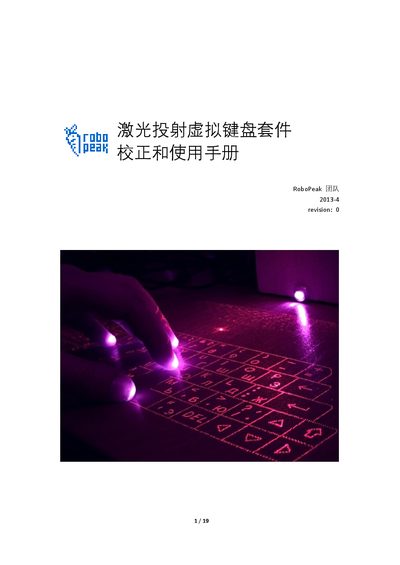
RoboPeak Laser Projection Virtual Keyboard Kit Calibration and Usage Manual
The RoboPeak Laser Projection Virtual Keyboard Kit is an open‑source laser keyboard solution that projects a virtual keyboard onto a flat surface. After assembling the infrared camera, projection module, and linear laser emitter, the kit can be connected to a computer and used like a regular keyboard.
The manual guides users through power‑on checks, USB connection, camera focus, projection pattern adjustment, and laser alignment. It also explains how to operate the accompanying signal‑processing software, switch languages, use multi‑point drawing mode, and adjust parameters such as exposure and key‑repeat timing. This manual is written in Chinese.
Covers: Introduction · Power‑On Check and USB Connection · Camera Focus · Projection Pattern Calibration · Camera Angle Adjustment · Linear Laser Adjustment
RoboPeak Mini USB Display Data Sheet
The RoboPeak Mini USB Display is a low‑cost, USB‑powered 2.8‑inch resistive touchscreen module. It features a 320×240 pixel LCD, up to 100 fps refresh, and an on‑board STM32 Cortex‑M3 microcontroller with native USB support.
The manual provides an overview of functions, pin definitions, mechanical dimensions, quick‑start connection steps, touchscreen calibration, and guidance for secondary development using the open‑source Linux driver and SDK. This manual is written in Chinese.
Covers: Introduction · Functional Overview · Pin Definition · Mechanical Structure · Quick Start · Touchscreen Calibration
Latest RoboPeak manuals
RoboPeak Laser Projection Virtual Keyboard Kit Calibration and Usage Manual
User Manual 19 pages · 1.9 MB · ZHThis manual provides calibration, assembly, and software usage instructions for the RoboPeak Laser Projection Virtual Keyboard Kit.
RoboPeak Mini USB Display Data Sheet
User Manual 13 pages · 758 KB · ZHTechnical data sheet for the RoboPeak Mini USB Display, a 2.8‑inch resistive touchscreen with USB power and 320×240 resolution.
Which document do I need?
User Manual
Day-to-day operation, settings and troubleshooting. Start here if the product is already set up.
Questions answered in RoboPeak manuals
How do I connect the laser keyboard kit to my computer?
Connect the kit to the computer using a micro‑USB cable; the projected keyboard pattern and a new camera detection prompt should appear.
From: RoboPeak Laser Projection Virtual Keyboard Kit Calibration and Usage Manual
How can I focus the infrared camera?
Rotate the infrared camera’s lens while watching the software window until the finger spot appears clear and bright.
From: RoboPeak Laser Projection Virtual Keyboard Kit Calibration and Usage Manual
What power does the display require?
The display draws power directly from the USB connection, requiring 4.8‑5.2 V at up to 200 mA, so no external power supply is needed.
What interface does the display use for video and touch data?
All data is transferred over a single Micro‑USB connector that provides both power and USB communication.