
The Philips 328M6 monitor user manual provides safety information, setup steps, image‑optimization features, FreeSync details, technical specifications…
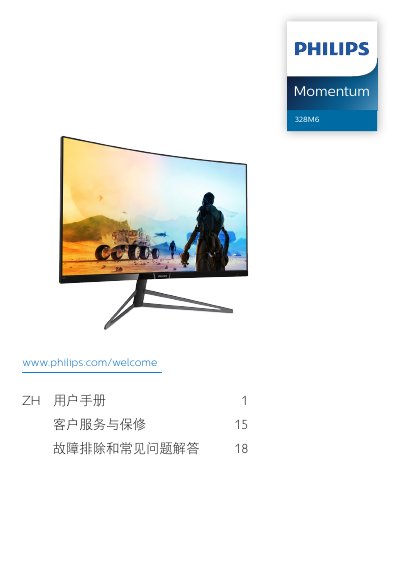
This manual guides users through safe handling, installation and operation of the Philips 328M6 LCD monitor. It covers safety measures, mounting, cable connections, on‑screen display (OSD) navigation and image‑enhancement settings such as SmartImage and SmartContrast.
The document also lists the monitor’s technical specifications, power consumption, warranty information and a comprehensive troubleshooting section that addresses common issues like no picture, image retention and audio problems. This manual is written in Chinese.
| Panel Type | MVA |
|---|---|
| Backlight | LED |
| Screen Size | 31.5" (80 cm) |
| Aspect Ratio | 16:9 |
| Pixel Pitch | 0.364 mm × 0.364 mm |
| SmartContrast Ratio | 50,000,000:1 |
| Response Time (typ.) | 22 ms (GtG) |
| SmartResponse Time (typ.) | 4 ms (GtG) |
| Native Resolution | 1920 × 1080 @ 60 Hz |
| Vertical Refresh Rate | 48 Hz – 146 Hz |
| FreeSync | Supported |
| Inputs | VGA, DisplayPort 1.2, HDMI 1.4 |
| Power Input | 100‑240 VAC, 50‑60 Hz |
Check that the power cable is firmly connected to both the outlet and the monitor, ensure the power button is turned on, and verify that the video cable is correctly attached to the PC.
The monitor works best at its native resolution of 1920 × 1080 @ 60 Hz; using this setting provides optimal image quality.
Press the left button to open the SmartImage menu, then use the up/down buttons to select a mode such as FPS, Racing, RTS, Gamer 1, Gamer 2, LowBlue or Off, and confirm with the left button.