
Guide to activating and installing Panda Internet Security on Windows, Android, Mac and iOS, creating a Panda Account and renewing the license.
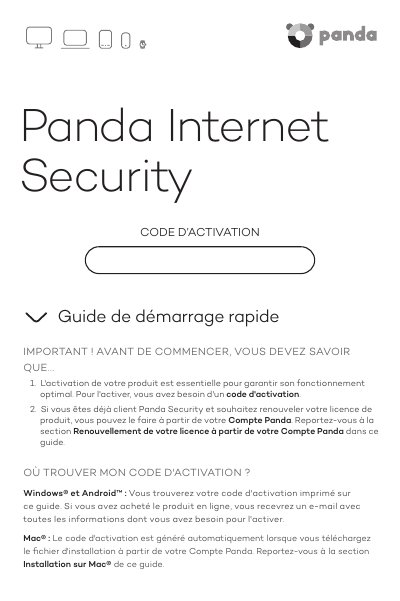
This four-page quick start guide from Panda Security explains how to activate and install Panda Internet Security. It first tells you where to find your activation code, which is printed on the guide for Windows and Android, sent by e-mail after an online purchase, and generated automatically for Mac when you download the installer from your Panda Account.
The guide then gives separate installation steps for Windows, Android, Mac and iOS, followed by instructions for creating and verifying a Panda Account at myaccount.pandasecurity.com, renewing a license with an activation code, and reaching the technical support section of the Panda Security website. This manual is written in French.
| Supported platforms | Windows, Android, Mac and iOS |
|---|---|
| Activation | Activation code required |
| Mac installer file | PAV4MAC.dmg |
| Panda Account address | myaccount.pandasecurity.com |
| Technical support site | www.pandasecurity.com/homeusers/support/ |
For Windows and Android it is printed on the guide, or sent by e-mail if the product was bought online. For Mac it is generated automatically when you download the installation file from your Panda Account.
Go to myaccount.pandasecurity.com, select Create a new account, enter the required data, click Create, then verify the account from the verification e-mail.
Sign in at myaccount.pandasecurity.com, click I have an activation code…, enter your activation code and select the product whose license you want to renew.
Visit the technical support section of the Panda Security website at www.pandasecurity.com/homeusers/support/.