
User manual for the Minjcode MJ3650 CCD 433 MHz barcode scanner, covering setup, charging, troubleshooting, and optional settings.
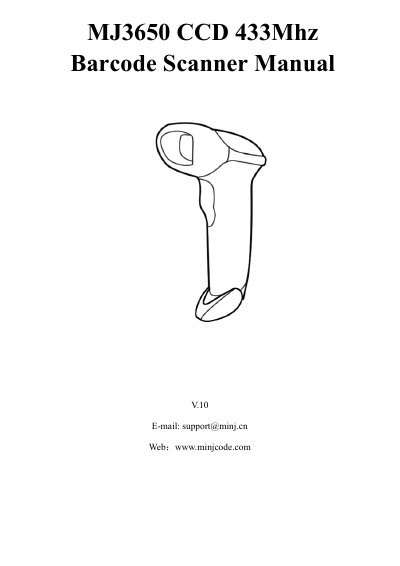
The Minjcode MJ3650 is a CCD 433 MHz barcode scanner. This manual covers its technical parameters, packing list, battery charging, setup steps, FAQs, troubleshooting, and optional function settings.
Optional settings are changed by scanning setup barcodes in the manual, including upload mode, scanning mode, duplicated barcode detection, beep, keyboard language, case sensitivity, power-off, end character, barcode type enable/disable, and data editing.
| Radio frequency | 433 MHz |
|---|---|
| Wireless range | Indoor 100 m, outdoor 200 m |
| Memory | 100,000 barcodes |
| Battery capacity | 2000 mAh |
| Charging power | DC 5 V, 400 mA |
| Standby current | 18-25 uA |
| Working current | 15-50 mA |
| Printing contrast | >25% |
| Light source | LED |
| LED life | 12,000 hours |
| Button life | 8,000,000 times |
| Resolution | >=4 mil |
| Scanning width | 30 cm |
| CPU | ARM 32-bit Cortex |
| Bit error rate | 1/20,000,000 |
| Decoding speed | 10 ms/times |
| Scanning angle | Rotor +/-30 deg, inclination +/-60 deg, declination +/-60 deg |
| Drop test | 1.5 m |
| Full-charge work time | 18 hours |
| Certificates | CE, FCC, RoHS, IP54 |
| Supported 1D barcodes | EAN13, EAN8, UPC-A, UPC-E0, UPC-E1, Code128, Code39, Code93, CodaBar, Interleaved 2 of 5, Industrial 2 of 5, Matrix 2 of 5, Code11, MSI-Plessey, Standard 2 of 5, Plessey, China Post, GS1 Databar |
Two adjacent barcodes, prefix or suffix settings, or keyboard language settings can cause unexpected output; scan the suggested setup codes or contact customer service.
Incomplete or unclear barcodes might not be read, or the barcode type may be disabled by default and needs to be activated.
Yes, scan the "Disable suffix" code on page 14 to remove auto-enter.