
Quick reference guide for Shared Health staff to enrol in Microsoft MFA using the Microsoft Authenticator app.
This guide explains Microsoft Multi-Factor Authentication (MFA) for Shared Health and when additional verification is requested, including for MS Teams, Outlook Mobile, and applications using Imprivata Two-Factor Authentication when not connected to the network.
It provides step-by-step instructions for downloading the Microsoft Authenticator app on a smartphone and self-registering an account through the Security info page, including scanning a QR code and approving a sign-in request.
| One-time passcode length | 6 digits |
|---|
Shared Health introduced stronger cyber security protection called Microsoft Multi-Factor Authentication (MFA). It requests additional verification of your identity when accessing protected applications.
MFA is requested when trying to access an application protected by MFA, including MS Teams, Outlook Mobile, or applications using Imprivata Two-Factor Authentication when not connected to the network.
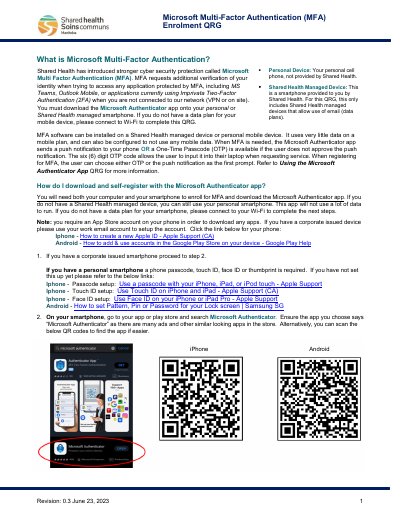
On your smartphone, go to your app or play store and search Microsoft Authenticator, then install it. You can also scan the provided QR codes to find the app.
Take note of the number shown on your computer screen, then touch Yes or Approve within 30 seconds on your smartphone and enter that number.