
Quick start guide for setting up the Huawei TC7102 router, covering indicator lights, Wi‑Fi setup, WPS pairing, and troubleshooting.
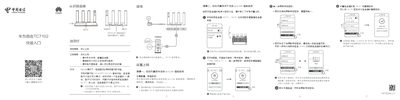
This guide introduces the Huawei TC7102 router, explaining the meaning of the indicator lights, the function of the H key (which also serves as a WPS button), and how to connect the device to a network using either e‑Link or HiLink modes. It provides step‑by‑step instructions for initial configuration, including entering broadband credentials, using the web interface, and enabling optional features such as 5G‑Preferred and Wi‑Fi 6.
The document also contains a troubleshooting section that addresses common issues such as factory reset procedures, password recovery, WPS pairing, and connectivity problems. Safety and regulatory information, as well as warranty and service details, are included at the end of the manual. This manual is written in Chinese.
| Wi‑Fi Standard | Wi‑Fi 6 |
|---|---|
| Power Interface | 1000M WAN/LAN |
Power on the router, press and hold the reset hole with a needle for more than 2 seconds until the indicator light turns off, then release; the router will restart and the red light will indicate the reset is complete.
While the router is powered on, press the H key on the router and then press the WPS button on the Wi‑Fi device within two minutes to start standard WPS negotiation and connect the device.
Connect to the router’s Wi‑Fi, open a browser to 192.168.2.1, log in, go to More Functions → Network Settings → Smart Networking, turn off the “Enable e‑Link” switch and turn on the “Enable HiLink” switch, then reboot the router.