
User guide for the Hillstone LoadView SD datalogger, which records UPS or genset AC test data to an SD card for CSV export.
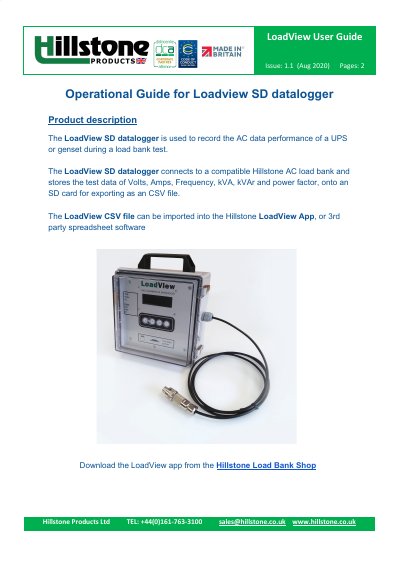
This user guide explains how to operate the LoadView SD datalogger, a device used to record the AC data performance of a UPS or genset during a load bank test. The datalogger connects to a compatible Hillstone AC load bank and stores test data of Volts, Amps, Frequency, kVA, kVAr and power factor onto an SD card for exporting as a CSV file.
The guide covers the full operating sequence: inserting the SD card, connecting the datalogger to the load bank, setting the date and recording time interval, starting and stopping a recording, and exporting the CSV file. The LoadView CSV file can be imported into the Hillstone LoadView App, downloadable from the Hillstone Load Bank Shop, or into third-party spreadsheet software, and the app can report the data into a PDF file.
| Recorded parameters | Volts, Amps, Frequency, kVA, kVAr and power factor |
|---|---|
| Storage | SD card, exported as CSV file |
| Compatible equipment | Hillstone AC load bank |
| Document issue | 1.1 (Aug 2020), 2 pages |
Insert the SD card, connect the datalogger to the running load bank, set the date and time interval in Settings, then press Record. The filename, e.g. LV00X, will be displayed.
Press OK to stop the data logging. Logging also stops if the load bank is switched off, after which the SD card can be removed.
Remove the SD card and import the CSV file into the PC LoadView app or third-party spreadsheets. The LoadView app can report the data into a PDF file.
The LoadView app can be downloaded from the Hillstone Load Bank Shop.