
The Flashforge Adventurer 4 Series 3D printer user guide provides safety notices, setup, operation, maintenance, and troubleshooting information.
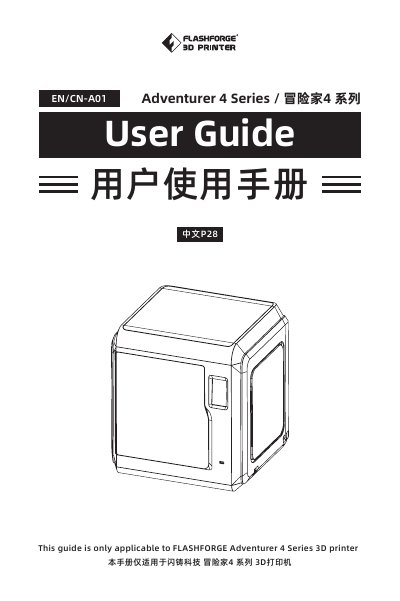
This user guide covers everything needed to install, configure, and operate the Flashforge Adventurer 4 Series 3D printer. It includes safety and environment requirements, component introductions, software installation, printing procedures, and detailed Q&A for common issues.
The manual also provides maintenance tips, firmware update instructions, and contact information for Flashforge support, ensuring users can keep the printer running reliably.
| Build volume | 220 x 200 x 250 mm |
|---|---|
| Layer thickness | 0.1~0.4 mm |
| Nozzle diameter | 0.4 mm (default), 0.6/0.3 mm optional |
| Printing speed | 10~150 mm/s |
| Highest extruder temperature | 265 °C / 240 °C |
| Filament types | ABS, PLA, PC, PETG, PLA‑CF, PETG‑CF |
| Power supply | AC100‑240 V / DC 24 V, 13.3 A, 320 W |
| Device size | 500 mm (L) × 470 mm (W) × 550 mm (H) |
| Connectivity | USB, Wi‑Fi, Ethernet |
Open the Flashforge cloud website (https://cloud.sz3dp.com/login.html), open the printer’s cloud interface, add the printer by entering its name and registration code, then enable the cloud switch on the printer.
Visit the Polar cloud website (https://polar3d.com), log in with your account and password, then enter the PIN code shown in the printer’s cloud settings to link the device.
If you hear the startup sound, replace the screen or its ribbon cable; if there is no sound, contact the supplier for assistance.