
User manual for the FALCON 4G COMBO router, covering setup, configuration, APN settings, and troubleshooting for mobile internet use in vehicles and rural…
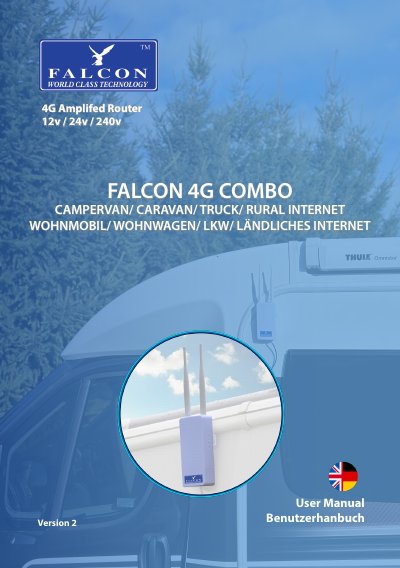
This manual guides users through setting up the FALCON 4G COMBO router, including inserting the SIM card, connecting via Wi-Fi, configuring WAN and wireless settings, and changing admin passwords. It also covers advanced settings like VLAN, QoS, and firewall options, as well as troubleshooting common issues such as no internet or router not powering on. The router supports multiple ISPs and includes detailed APN configurations for providers like EE, Vodafone, and Three.
The device is designed for mobile use in vehicles and rural areas, with dual external antennas and compatibility with 12V/24V/240V power sources. It features a factory default IP of 192.168.1.254 and supports multiple operating systems including Windows, iOS, and Android. This manual is written in Chinese.
| Antenna Gain | 2.4GHz - Internal, 2 x 2, build-in 5dBi |
|---|---|
| LTE Antenna | 2 x External 5 dBi omnidirectional Antenna, SMA type |
| Data Rate | 2.4GHz - 3GPP R9 Cat. 4, Downlink/Uplink up to 150Mbps/50Mbps |
| Max. Power Consumption | 8.5W |
| Operating Temperature | -10°C to 55°C |
| Power Input | DC 12v 1A & DC 24v 5A |
| Dimensions (with antennas) | 78 x 42 x 313 |
| Weight (with accessories) | 185g |
Connect to the default Wi-Fi network 'Falcon4G' with password 'F@1con_99'. Ensure the SIM card is inserted and the router is powered on.
Enter the old password 'F@1con_admin_99', input the new password, and click Save. Write it down for future reference.
Press the reset button for 5 seconds using a pin or needle. The router will show a red light for 60 seconds, then a green light. Reconnect using 'Falcon4G' and password 'F@1con_99'.