
This manual covers product parameters, setup instructions, timer configuration, and troubleshooting for the Broadlink Wi-Fi Smart Power Socket.
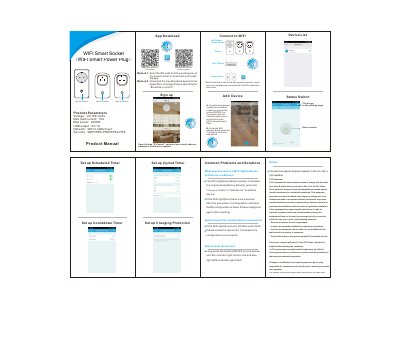
The Broadlink Wi-Fi Smart Power Socket is designed for use with AC100~240V power supplies, supporting a maximum load current of 10A and a max power of 2200W. It features a USB output of 5V/1A and connects via a 2.4GHz WiFi network (b/g/n) with WEP, WPA-PSK, or WPA2-PSK security protocols. The device includes physical ON/OFF buttons and an indicator light to show status.
| Voltage | AC100~240V |
|---|---|
| Max load current | 10A |
| Max power | 2200W |
| USB output | 5V/1A |
| Network | WiFi 2.4GHz b/g/n |
| Security | WEP/WPA-PSK/WPA2-PSK |
You can scan the QR code from the packing box or download the free Broadlink App from the Apple Store or Google Play by searching for "Broadlink e-control".
A quick-flash blue WiFi light indicates the device is in its original factory default state and is ready to be configured.
To reset the device, long press the ON/OFF button until the indicator light turns red and the blue WiFi indicator light flashes.