
This Quick Start Guide explains system requirements, installation steps, and connection instructions for the Bavarian Technic Diagnostic Tool.
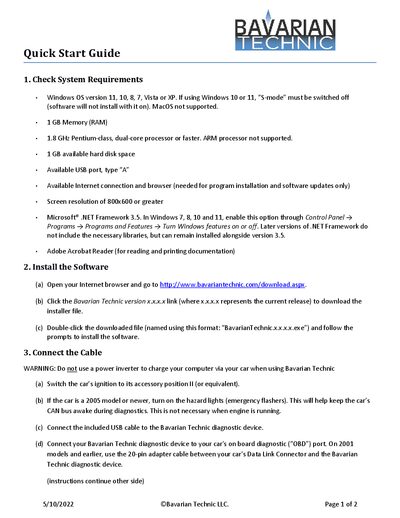
The guide provides a concise overview of everything needed to get the Bavarian Technic Diagnostic Tool up and running. It lists the supported operating systems, hardware requirements, and necessary software components.
Step‑by‑step instructions cover installing the software, connecting the USB cable to the vehicle’s OBD port, and launching the application to begin diagnostics.
| Supported Operating Systems | Windows 11, 10, 8, 7, Vista, XP (no S‑mode) |
|---|---|
| Minimum RAM | 1 GB |
| Processor Requirement | 1.8 GHz Pentium‑class dual‑core or faster |
| Hard Disk Space | 1 GB available |
| USB Port Type | Type A |
| Screen Resolution | 800 × 600 or greater |
| .NET Framework Version | 3.5 |
You need a Windows PC (11, 10, 8, 7, Vista or XP without S‑mode), 1 GB RAM, a 1.8 GHz dual‑core processor or faster, 1 GB free disk space, a USB‑A port, internet access, a screen resolution of at least 800 × 600, .NET Framework 3.5, and Adobe Acrobat Reader.
Switch the car’s ignition to the accessory position, optionally turn on the hazard lights for newer cars, then plug the included USB cable into the Bavarian Technic device and connect the device’s OBD plug to the vehicle’s diagnostic port.
Double‑click the Bavarian Technic desktop icon, then select the appropriate vehicle model on the Choose Vehicle screen and confirm any equipment options.