
This document mainly introduces the installation and use of VPN system, including the installation, configuration, login and logout of IP Tong client software, as well as the installation, configuration, login and logout of internet billing management software.
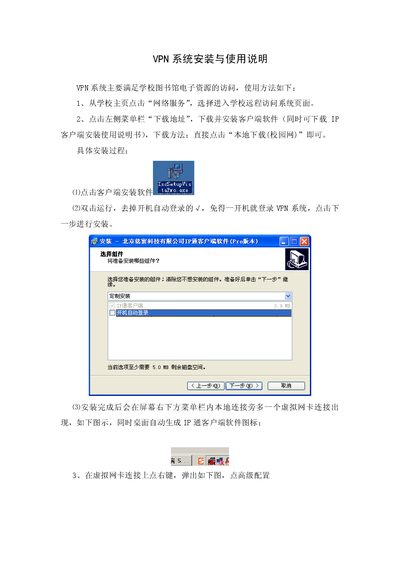
The IP Tong VPN system provides secure access to the school library’s electronic resources. Users install the VPN client on their computers, configure the server address, and log in with their campus credentials.
The document walks through downloading the client, disabling auto‑login, setting the server IP (211.82.112.13) and port (443), logging in with a username and a password prefixed by “g”, accessing both on‑campus and off‑campus library mirrors, and finally how to disconnect the VPN and related billing software. This manual is written in Chinese.
| Server IP | 211.82.112.13 |
|---|---|
| Server Port | 443 |
| Supported Operating Systems | Windows XP, Windows Vista/Win7 Ultimate |
Enter your campus card number as the username; for the password, prepend a “g” to your campus internet password (e.g., username 20010101, password g12345678).
Yes, after logging into the VPN client you must also log into the campus internet billing software to reach off‑campus mirrors.
Temporarily disable the antivirus during installation, then re‑enable it after the client is installed.