
DataPower Operations Dashboard delivers advanced operations for real-time visibility of transactions and centralized operations to enable quicker problem termination and operational resiliency.
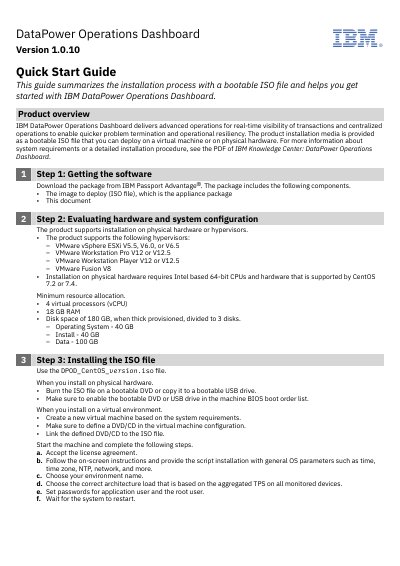
This Quick Start Guide covers IBM DataPower Operations Dashboard Version 1.0.10, which provides real-time visibility of transactions and centralized operations for quicker problem termination. The installation media is provided as a bootable ISO file that can be deployed on a virtual machine or physical hardware.
The guide walks through downloading the software from IBM Passport Advantage, evaluating hardware and hypervisor requirements, installing the ISO file, deploying the application, and accessing the web console with the default admin credentials.
| Supported hypervisors | VMware vSphere ESXi V5.5, V6.0, or V6.5; VMware Workstation Pro/Player V12 or V12.5; VMware Fusion V8 |
|---|---|
| Processor requirement | Intel based 64-bit CPUs |
| Memory requirement | 18 GB RAM |
| Disk space requirement | 180 GB thick provisioned across 3 disks |
It supports VMware vSphere ESXi V5.5, V6.0, or V6.5; VMware Workstation Pro V12 or V12.5; VMware Workstation Player V12 or V12.5; and VMware Fusion V8.
The product requires 4 virtual processors, 18 GB RAM, and 180 GB of disk space when thick provisioned.
Access the web console at the https://IP-address URL and sign in with user name admin and password adminuser.