
The Anyty Film Scanner Series is a versatile film scanner that can scan 35mm film and slides. It features a 1400万画素 CMOS sensor and TV output capability.
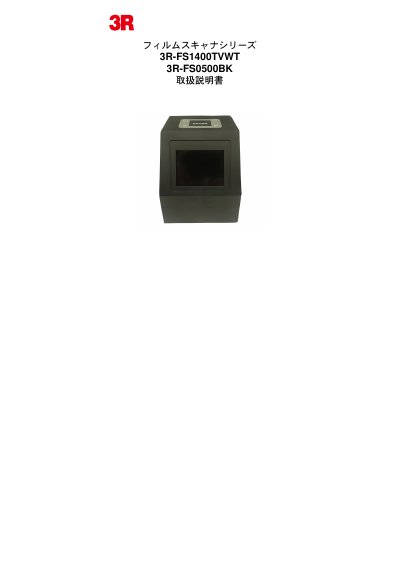
This document is the comprehensive user manual for the Anyty Film Scanner Series, specifically covering the 3R-FS1400TVWT and 3R-FS0500BK models. It provides instructions on unboxing, connecting accessories like SD cards and USB cables, loading film holders, and operating the device to scan 35mm and slide films. This manual is written in Japanese.
| Sensor | 5.1 mega pixel CMOS sensor (3R-FS0500BK) / 14mega pixel CMOS sensor (3R-FS1400TVWT) |
|---|---|
| Lens | F number=4.0, f=3.93 |
| LCD | 2.4inch LTPS color |
| Internal Memory | 32MB (user area 16MB) |
| External Memory | SD/SDHC Card (Max 32GB) |
| File Format | JPEG |
| Focus | Single |
| Exposure Control | Auto |
| Color Balance | Auto |
| Scanning Resolution | 1800 dpi (5mega pixel) / 3200 dpi (14mega pixel) |
| Save Pixel | 5M(2760x1840), 10M(3900x2600) / 10M(3900x2600), 14M(4608x3072), 22M(5760x3840) |
| Data Color | 12bits |
| Scanning Method | Single path |
| Light Source | WhiteLED |
| Power Supply | Mini USB |
| Dimensions | 103x90.5mmx104mm |
| Weight | About 220g |
Check whether the USB cable is connected correctly or if electricity is supplied to the USB port of the personal computer.
Check whether the SD card is connected correctly and ensure the MicroSD card is correctly connected with the adapter.
The default setting is for negative films; change the color setup in the main menu settings for positive or monochrome films.