
This manual describes how to set up an email account on an iPhone.
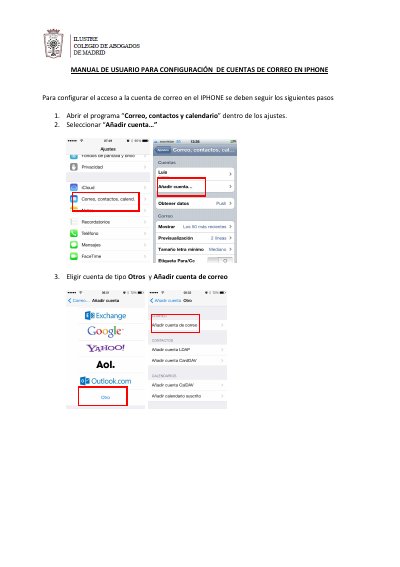
This Spanish-language guide explains how to configure an email account on an iPhone, using an @icam.es address as the example. It walks through opening "Correo, contactos y calendario" in the settings, selecting "Añadir cuenta…", choosing the Otros account type and entering the name, email address and password.
The remaining steps cover the IMAP account type, the incoming and outgoing server data, the verification step and saving the account. The guide then shows how to reopen the account to check the SMTP server settings (port 25, SSL not used) and the Advanced incoming server settings (SSL switched off, port 143). This manual is written in Spanish.
| Account type | IMAP |
|---|---|
| Outgoing (SMTP) server port | 25 |
| Outgoing (SMTP) server SSL | Not used (off) |
| Advanced incoming server port | 143 |
| Advanced incoming server SSL | Off |
The account is set up as an IMAP account, added as an Otros (Other) account in the mail settings.
The server port is 25 and SSL is not used.
In the Advanced section, SSL is changed to off and the port is changed to 143.
Go back to "Correo, contactos y calendario" in the settings, where the ICAM account is listed; tap it to see its data.