
This document provides a user manual for Adobe Illustrator software.
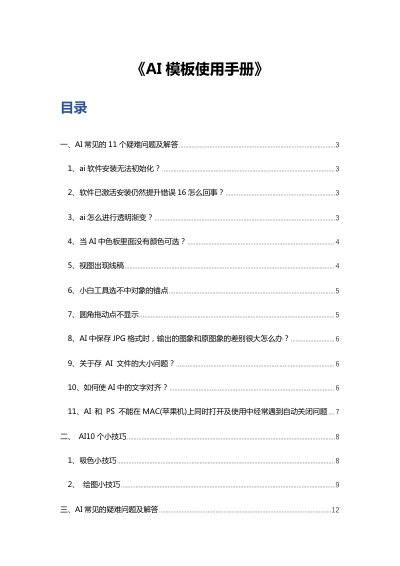
This 19-page Chinese-language document, titled 《AI 模板使用手册》 (AI Template User Manual), collects answers to common questions about using Adobe Illustrator (AI) together with a set of practical tips.
The question-and-answer sections cover installation that cannot be initialized, error 16 after activation, transparent gradients, missing colors in the Swatches panel, outline-only views, anchor points that cannot be selected, hidden corner-radius handles, color differences when saving JPG files, AI file size, text alignment, and running AI and Photoshop at the same time on a Mac. Later sections give color-picking and drawing tricks, explain how to place an image, describe two ways to cut out an object with the pen tool, and end with a list of common tool shortcuts. This manual is written in Chinese.
Delete the C:ProgramFilesCommonFilesAdobeOBE directory, or the C:ProgramFiles(x86)CommonFilesAdobeOBE directory on a 64-bit operating system.
Select a slider in the Gradient panel and change the opacity value shown below it to the value you need.
The Outline option in the View menu has been turned on; switch the view back with GPU Preview or Ctrl+Y.
Draw a closed area around the region with the Pen tool, select it, then use Object > Clipping Mask > Make.