
This is a user guide for HomeWizard Lite. It covers the installation, usage, pairing and other information of the product.
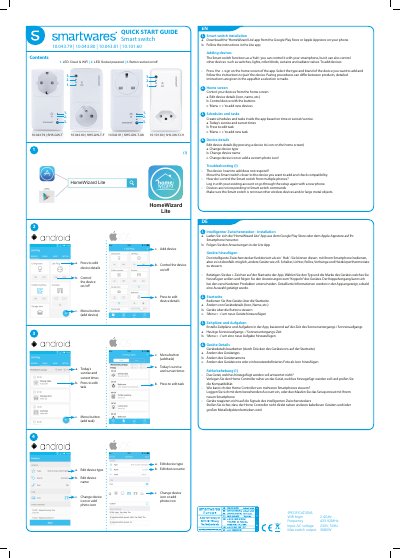
This quick start guide covers the HomeWizard Lite smart switch and the HomeWizard Lite app. It explains how to download the app from the Google Play Store or Apple Appstore, install the smart switch and add devices, since the switch works as a hub that can also control switches, lights, roller blinds, curtains and radiator valves.
The guide then describes the home screen, creating schedules and tasks based on time or sunrise and sunset, and editing device details such as type, name and icon or custom photo. A troubleshooting section addresses devices that do not respond and controlling the switch from multiple phones, followed by specifications and the contents of the package. The text is printed in English, German, Italian and French.
| WiFi | b/g/n 2.4GHz |
|---|---|
| Frequency | 433.92MHz |
| Input AC voltage | 230V, 50Hz |
| Max switch output | 3680W |
Download the HomeWizard Lite app from the Google Play Store or Apple Appstore on your phone and follow the instructions in the Lite app.
Yes, it functions as a hub and can also control other devices such as switches, lights, roller blinds, curtains and radiator valves.
Log in with your existing account or go through the setup again with a new phone.
Make sure the smart switch is not near other wireless devices and/or large metal objects.